Balance Panel
The Balance panel is your financial command center in Panther, giving you a unified view of your funds across all connected prediction market exchanges. Instead of logging into multiple platforms to check your balances, you can see everything at a glance in one place.
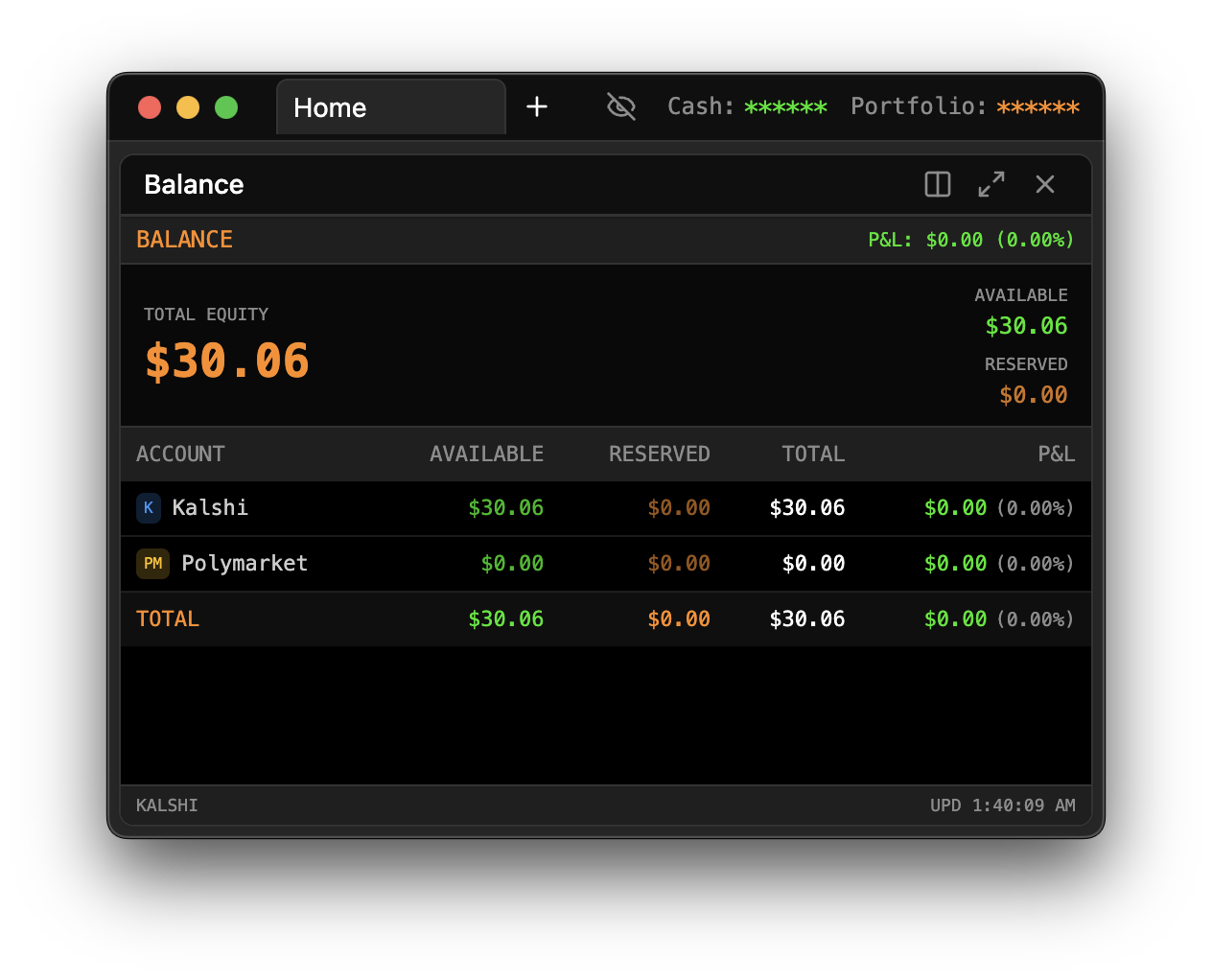
Opening the Panel
To open the Balance panel, press / to bring up the Command Palette, type BAL, and press Enter. The panel will appear in your current workspace, showing balances for all exchanges you've connected.
Understanding Your Balances
When you first open the Balance panel, you'll see a card for each connected exchange. Each card provides a complete picture of your financial position on that platform.
Kalshi Balance
Your Kalshi card displays three key metrics that together tell the story of your trading activity:
Available Balance represents the cash you have on hand that's ready to deploy into new positions. This is money sitting in your account that isn't tied up in any active trades. When you place a new order, it draws from this available balance.
Reserved Balance shows the total value currently locked in your open positions. This includes the cost basis of all your active trades—the money you've committed to markets that haven't yet resolved. As markets settle, this money either returns to your available balance (if you lose) or returns plus your winnings (if you win).
Profit & Loss (P&L) tracks your overall performance. This figure accounts for all your settled trades, showing whether you're up or down overall. A positive P&L means your winning trades have outpaced your losses; a negative P&L means the opposite.
Polymarket Balance
Your Polymarket card works similarly, but with one key difference: balances are denominated in USDC rather than USD. USDC is a stablecoin pegged to the US dollar, so 1 USDC equals approximately $1.
The same three metrics apply: available USDC for new trades, reserved USDC in open positions, and your cumulative P&L across all settled markets.
Responsive View Modes
The Balance panel intelligently adapts to the space you give it. This means you can make it as large or compact as your workflow requires.
In Compact mode, when the panel is sized small, you'll see just the essential numbers—your available balance for each exchange. This is perfect when you want to keep an eye on your funds without dedicating much screen real estate.
Normal mode activates when you give the panel a bit more room. Here you'll see all three metrics (available, reserved, and P&L) displayed clearly for each exchange, giving you the full picture without any visual clutter.
Expanded mode kicks in when you maximize the panel or give it generous space. In this mode, you may see additional breakdowns and details about your positions, making it useful for deeper portfolio analysis.
To switch between modes, simply resize the panel by dragging its edges. The panel automatically chooses the best layout for the available space.
Real-Time Updates
Your balances don't stay static. The Balance panel automatically refreshes every 30 seconds, pulling the latest data from each exchange. This means you'll see your available balance decrease moments after placing an order, and you'll see your P&L update shortly after a market settles.
You don't need to manually refresh or reopen the panel—just leave it open and it keeps itself current. This is especially useful during active trading sessions when your positions are changing frequently.
Connection Status Indicators
At a glance, you can tell whether each exchange connection is healthy. Look for the small status indicator on each exchange card:
A green dot means everything is working perfectly. Panther has valid credentials for that exchange and is successfully communicating with their API. Your balance data is live and accurate.
A gray dot indicates that the exchange isn't connected. This usually means you haven't set up credentials for that exchange yet, or your credentials have expired or become invalid.
If you see a gray dot for an exchange you've previously connected, your API keys may need to be refreshed. Head to Settings (press /, type STG, Enter) and navigate to the exchange under the Exchanges section to re-enter or verify your credentials.
When Balances Don't Look Right
Sometimes your balance might not match what you expect. Here are the most common situations and how to resolve them:
If your balance isn't updating, first check your internet connection. The panel needs network access to fetch fresh data from the exchanges. If your connection is fine, try closing the panel and reopening it—this forces a fresh data fetch. If the problem persists, verify your credentials in Settings; expired or revoked API keys will prevent balance updates.
If your balance shows $0 when you know you have funds, double-check that you're connected with the correct account. It's possible to have multiple accounts on an exchange, and you may have connected a different one than intended. For Polymarket specifically, remember that your USDC must be deposited into Polymarket itself, not just sitting in your connected wallet. Funds in your Ethereum wallet don't count as Polymarket balance until you've deposited them into the platform.
If an exchange card doesn't appear at all, you need to connect that exchange first. The Balance panel only shows exchanges you've authenticated. See the Kalshi Setup or Polymarket Setup guides to connect your accounts.