Command Palette
The Command Palette is the fastest way to navigate Panther and open panels. Press / anywhere in the app to open it.
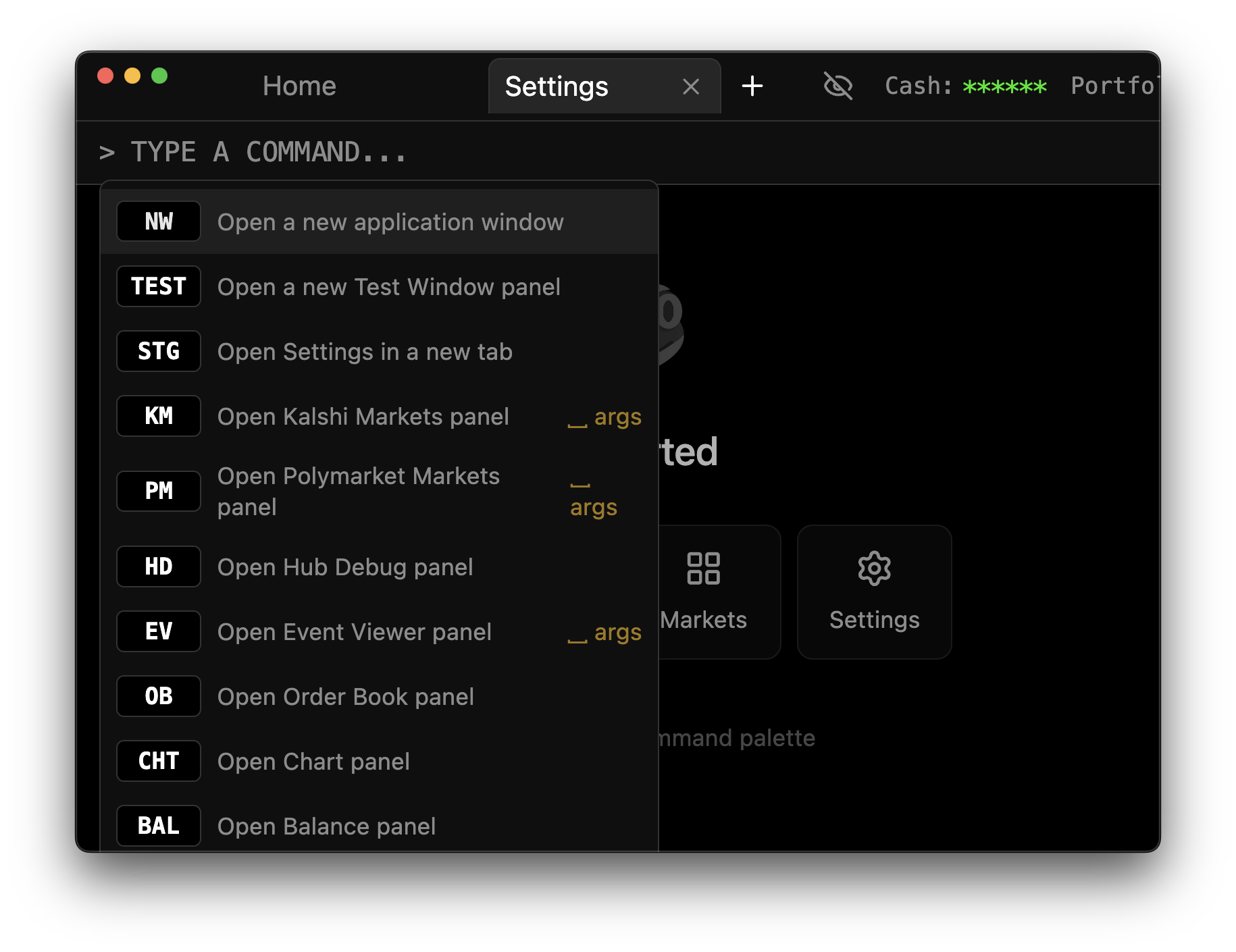
Opening the Command Palette
Press / (forward slash) at any time to open the Command Palette.
tip
The Command Palette only opens when you're not typing in a text field. If / types a character instead, click outside any text inputs first.
Using Commands
Basic Usage
- Press
/to open the palette - Type a command code (e.g.,
BAL) - Press Enter to execute
Commands filter as you type. The matching commands appear in the dropdown.
Commands with Arguments
Some commands accept arguments (indicated by "␣ args" in the dropdown):
- Press
/to open the palette - Type the command (e.g.,
EV) - Press Space or Tab to lock the command
- Enter your argument (e.g., a market URL)
- Press Enter to execute
To go back without executing, press Backspace or Escape.
Command Reference
| Command | Name | Description |
|---|---|---|
NW | New Window | Open a new application window |
STG | Settings | Open Settings panel |
KM | Kalshi Markets | Open Kalshi Markets browser |
PM | Polymarket Markets | Open Polymarket Markets browser |
EV | Event Viewer | Open Event Viewer (accepts URL argument) |
OB | Order Book | Open Order Book panel |
CHT | Chart | Open Chart panel |
BAL | Balance | Open Balance panel |
ARB | Arbitrage | Open Arbitrage Scanner |
ODDS | Odds | Open Odds browser |
PEV | +EV Scanner | Open +EV Scanner |
RNT | Rename Tab | Rename current tab (accepts name argument) |
LGT | Logout | Log out of your account |
Palette Navigation
While the Command Palette is open:
| Key | Action |
|---|---|
↑ / ↓ | Navigate through commands |
Enter | Execute selected command |
Space / Tab | Lock command for argument input |
Backspace | Unlock command (when locked) |
Escape | Close palette or unlock command |
Examples
Open Balance Panel
/ → BAL → Enter
Open Event Viewer with URL
/ → EV → Space → [paste URL] → Enter
Rename Current Tab
/ → RNT → Space → "Trading" → Enter
Quick Settings Access
/ → STG → Enter
Tips
- Commands are uppercase only - type in caps or the palette converts automatically
- Commands filter by both name and description
- Most-used commands are quick to type (2-4 characters)
- Use Tab instead of Space if you prefer - both lock the command