Connecting Your Kalshi Account
This guide walks you through linking your Kalshi account to Panther to view your balances, positions, and trade directly from the app.
Prerequisites
- A verified Kalshi account
- API access enabled on your Kalshi account
Step 1: Generate API Credentials on Kalshi
- Log in to your Kalshi account at kalshi.com
- Click Menu → Account and security
- Scroll down to the API Keys section
- Click Create API Key
- Give your key a descriptive name (e.g., "Panther Desktop")
- Download or copy your credentials:
- API Key ID - A unique identifier for your key
- Private Key - An RSA private key in PEM format
Keep Your Private Key Safe
Your private key grants full access to your Kalshi account. Never share it with anyone or paste it into untrusted applications.
Step 2: Open Kalshi Settings in Panther
- Open Panther
- Press
/to open the Command Palette - Type
STGand press Enter to open Settings - Click Kalshi in the sidebar under "Exchanges"
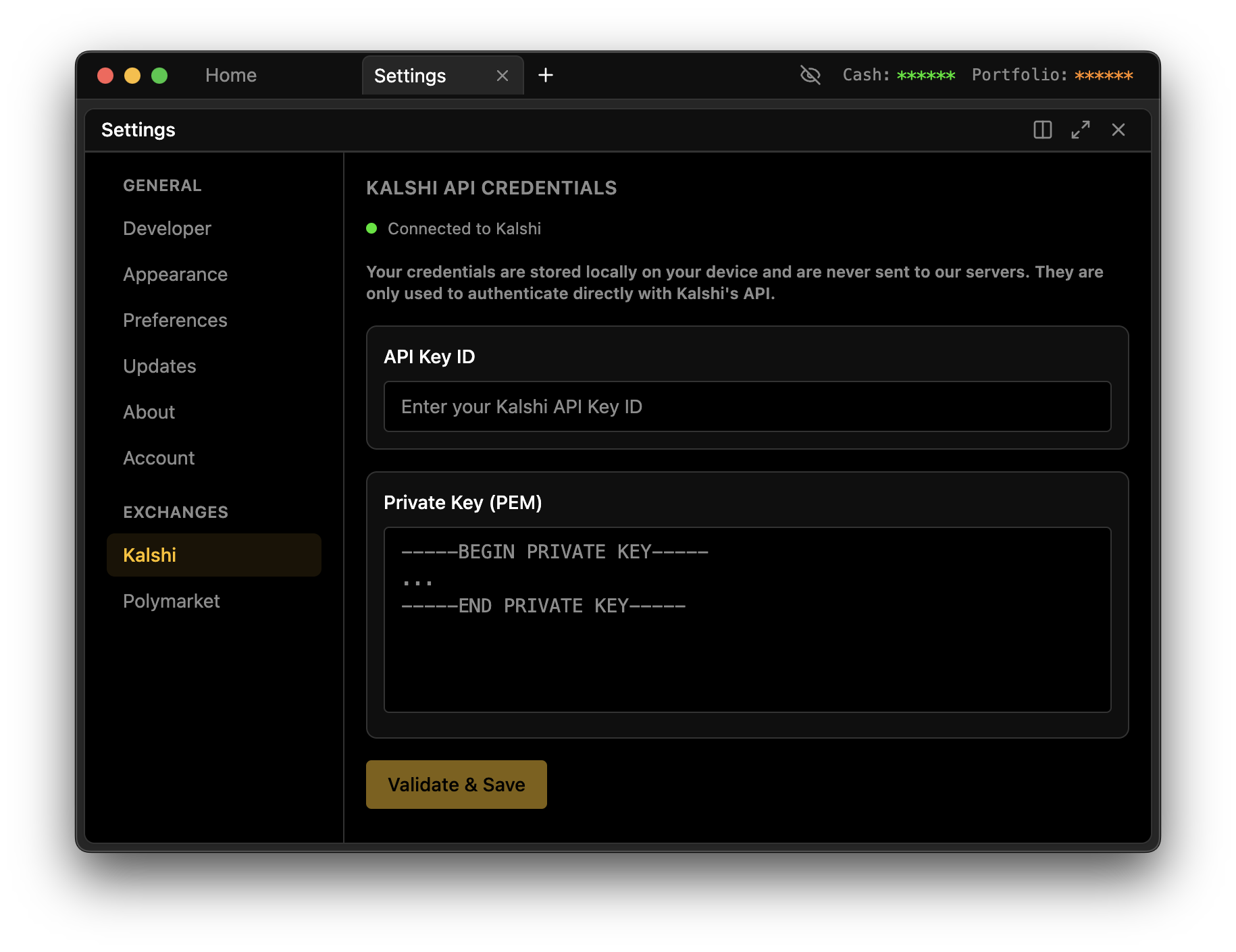
Step 3: Enter Your Credentials
- In the API Key ID field, paste your API Key ID from Kalshi
- In the Private Key field, paste your full private key including the headers:
-----BEGIN RSA PRIVATE KEY-----
MIIEowIBAAKCAQEA...
...your key content...
-----END RSA PRIVATE KEY-----
- Click Validate & Save
Step 4: Verify Connection
After saving, you should see:
- A green connection indicator next to "Kalshi" in the sidebar
- Your account balance displayed in the Balance panel
To test the connection:
- Press
/to open Command Palette - Type
BALand press Enter - Your Kalshi balance should appear
Troubleshooting
"Invalid credentials" error
- Ensure you copied the entire private key, including
-----BEGIN RSA PRIVATE KEY-----and-----END RSA PRIVATE KEY----- - Check that the API Key ID matches exactly (no extra spaces)
- Verify your API key hasn't been revoked on Kalshi
"Connection failed" error
- Check your internet connection
- Kalshi's API may be temporarily unavailable
- Try again in a few minutes
Balance shows $0 but I have funds
- Ensure you're looking at the correct account (production vs demo)
- Refresh the Balance panel by closing and reopening it
Security
Your Kalshi credentials are stored locally on your device only. They are never sent to Panther's servers. The credentials are saved in your operating system's secure storage location:
- macOS:
~/Library/Application Support/gekko/ - Windows:
%APPDATA%\gekko\
To disconnect your account, simply clear the API Key ID and Private Key fields in Settings.