Connecting Your Polymarket Account
This guide walks you through linking your Polymarket wallet to Panther to view your balances and positions.
Prerequisites
- An Ethereum wallet connected to Polymarket
- Your wallet's private key
Understanding Polymarket Authentication
Polymarket uses Ethereum wallets for authentication. When you connect your wallet to Panther:
- Your private key is used to derive L2 API credentials
- These credentials allow Panther to read your balance and positions
- Your private key never leaves your device
Step 1: Export Your Private Key from Polymarket
- Log in to your Polymarket account at polymarket.com
- Click Settings in the menu
- Click Export Private Key
- Complete the verification process
- Copy the private key (starts with
0x)
Your private key grants full control of your wallet and all funds within it.
- Never share your private key
- Never paste it into websites you don't trust
- Consider using a dedicated wallet with limited funds for Panther
Step 2: Open Polymarket Settings in Panther
- Open Panther
- Press
/to open the Command Palette - Type
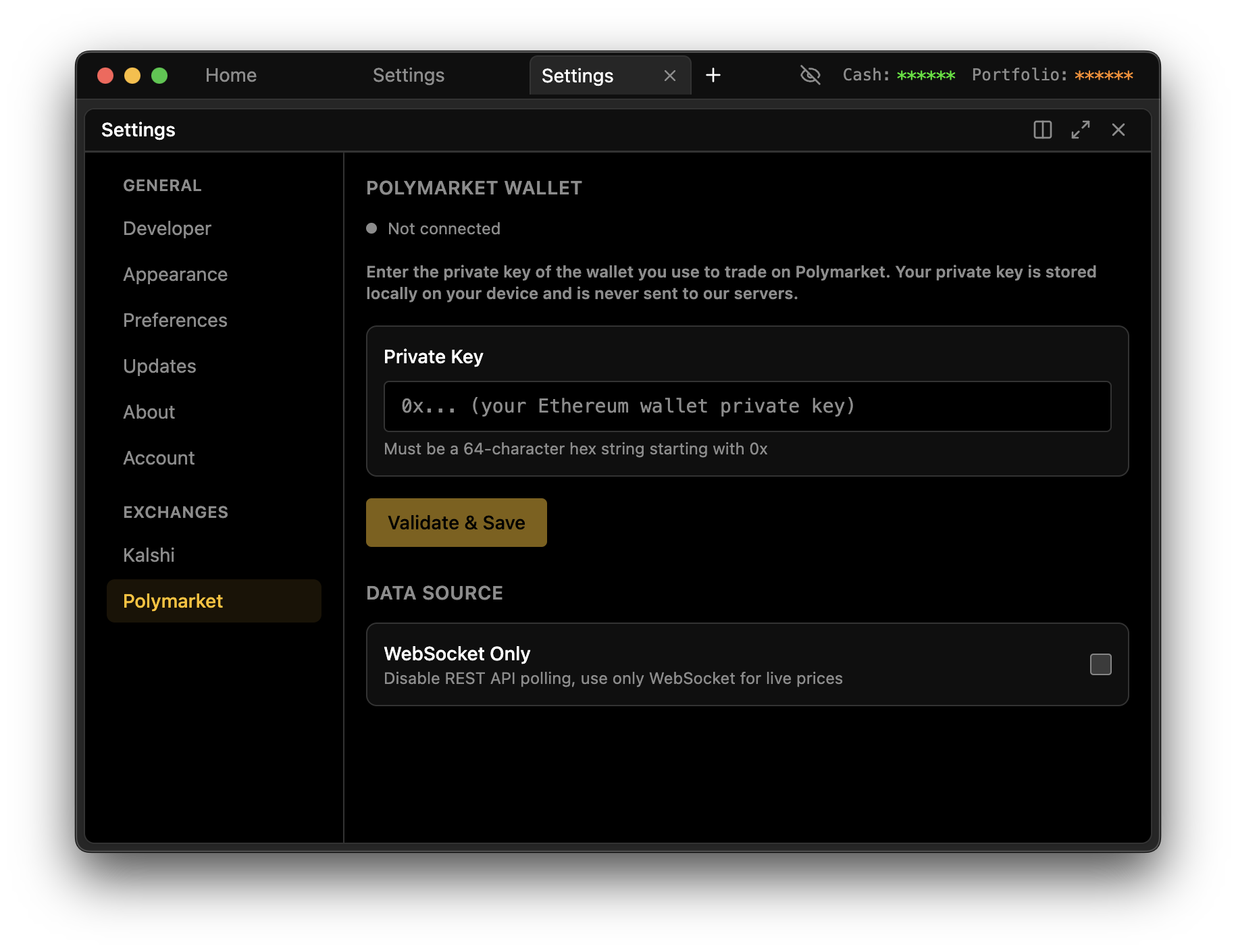
STGand press Enter to open Settings - Click Polymarket in the sidebar under "Exchanges"
Step 3: Enter Your Private Key
-
In the Private Key field, paste your wallet's private key
- Must be in hex format starting with
0x - Should be 66 characters total (0x + 64 hex characters)
- Must be in hex format starting with
-
Click Validate & Save
Panther will:
- Validate the key format
- Derive your L2 API credentials
- Display your wallet address for confirmation
Step 4: Verify Connection
After saving, you should see:
- Your wallet address displayed (verify it matches your Polymarket wallet)
- A green connection indicator next to "Polymarket" in the sidebar
To test the connection:
- Press
/to open Command Palette - Type
BALand press Enter - Your Polymarket USDC balance should appear
Supported Wallet Types
Panther supports multiple Polymarket wallet configurations:
| Wallet Type | Description |
|---|---|
| EOA (Standard) | Regular Ethereum wallets like MetaMask |
| Magic Link | Polymarket's email-based login wallet |
| Gnosis Safe | Multi-signature wallets |
The wallet type is automatically detected based on your Polymarket account setup.
WebSocket-Only Mode
In Settings, you can enable WebSocket Only mode:
- Enabled: Only uses WebSocket for real-time data (lower API usage)
- Disabled: Uses both REST and WebSocket (more reliable, higher API usage)
For most users, leaving this disabled is recommended.
Troubleshooting
"Invalid private key format" error
- Ensure the key starts with
0x - Check that it's exactly 66 characters
- Make sure there are no extra spaces or line breaks
"Could not derive L2 credentials" error
- Your wallet may not be registered with Polymarket
- Visit polymarket.com and connect your wallet first
- Complete any required account setup on Polymarket
Wallet address doesn't match
If the displayed address doesn't match your Polymarket wallet:
- You may have entered the wrong private key
- Double-check which wallet is connected to Polymarket
Balance shows $0
- Verify you're connected with the same wallet used on Polymarket
- Check that you have USDC deposited on Polymarket (not just in your wallet)
Security
Your private key is stored locally on your device only. It is never sent to Panther's servers.
Storage locations:
- macOS:
~/Library/Application Support/gekko/ - Windows:
%APPDATA%\gekko\
To disconnect, clear the Private Key field in Settings.
For added security, consider creating a separate wallet just for Polymarket trading. Transfer only the funds you plan to trade with.